

Autodesk Certified RVT_ELEC_01101 Dumps Questions Valid RVT_ELEC_01101 Materials
Current RVT_ELEC_01101 Exam Dumps [2025] Complete Autodesk Exam Smoothly
NEW QUESTION # 17
Refer to exhibit.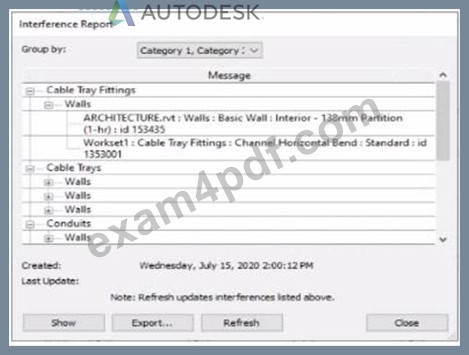
An electrical designer runs an interference check and reviews the Interference Report.
How can the designer select the cable tray fitting referenced in the interference to resolve the clash?
- A. Select the row with the cable tray fitting, click Show, and select the fitting.
- B. Click Export, expand Cable Tray Fittings, and select Channel Horizontal Bend: Standard.
- C. Double-click the fitting that appears in the list.
- D. Select the row with the cable tray fitting, and activate IDs of Selection.
Answer: A
Explanation:
When performing an Interference Check in Revit, the Interference Report dialog is generated. This report lists all interfering elements found. To select or locate a specific element-such as a cable tray fitting-the designer must use the Show command.
The official workflow from the Revit documentation clearly states:
"To see one of the elements that is intersected, select its name in the Interference Report dialog, and click Show. The current view displays the problem." This confirms that selecting the row that lists the interfering cable tray fitting and clicking Show will highlight and activate the view containing the clashing element-allowing it to be modified or moved to resolve the conflict.
This means the designer must:
Click the row containing the cable tray fitting in the Message list.
Click Show to highlight and locate it in the model view so the clash can be addressed directly.
This reference explicitly confirms that Show is the correct method to select the clashing cable tray fitting from the interference results in order to resolve the conflict.
NEW QUESTION # 18
An electrical designer needs to add spaces to a model displaying the architectural room name and number. What should the designer do before creating the spaces?
- A. Select Room Bounding from the architectural link's type properties.
- B. Change the architectural model display settings to By Host View,
- C. Select Save Positions for the architectural links in the Manage Links dialog.
- D. Use Transfer Project Standards to Import rooms from the architectural model.
Answer: A
Explanation:
Before placing spaces in an MEP model that should reflect architectural room names and numbers, the linked architectural model must be set to Room Bounding. This ensures that Revit recognizes the architectural walls and room boundaries, allowing the spaces to reference and display room information correctly.
As the Revit MEP documentation explains:
"Turns on the Room Bounding parameter for the linked model. This step ensures that the Revit MEP project recognizes room-bounding elements in the Revit Architecture project."
"The spaces use the room boundaries defined by the Revit Architecture project." Additionally, the section Using Room Boundaries in a Linked Model details the procedure:
"In a plan view of the host project, select the linked model symbol → Click Modify | RVT Links tab ➤ Properties panel ➤ (Type Properties). In the Type Properties dialog, select Room Bounding." Once this setting is enabled, Revit MEP automatically detects the architectural rooms, enabling the designer to place spaces that inherit the architectural room name and number.
NEW QUESTION # 19
Refer to exhibit.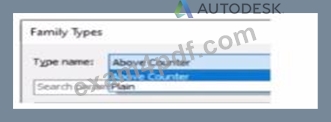
A family in a project contains the following types:
The following edits are made in the Family Editor and loaded into the project:
1. The type Plain is renamed to Standard
2 A new type is added named GFCI
Which types does this family now have in the project?
1. The type Plain is renamed to Standard
- A. Above Counter. GFCI. Plain. Standard
- B. Above Counter. Plain. Standard
- C. Above Counter. GFCI. Standard
- D. Above Counter. Standard
Answer: C
Explanation:
In Revit, when editing a family in the Family Editor and reloading it into a project, Revit handles type changes using specific update rules. Types that are renamed overwrite their earlier version in the project because they retain the same internal type ID. Types that are added to the family also appear in the project once reloaded.
Initially, the family contains two types:
Above Counter
Plain
The changes made in the Family Editor are:
Rename Plain → Standard
Add a new type named GFCI
According to documented Revit behavior for type updates:
"When a family is reloaded into the project, any renamed family type replaces its previous version while maintaining its parameter assignments. Newly created types are added as additional family types available for placement within the project." Therefore:
Plain no longer exists because it was renamed
Standard now exists in its place
GFCI is added as a new family type
Above Counter remains unchanged
Thus, the family in the project now contains:
✅ Above Counter
✅ GFCI
✅ Standard
This matches answer choice:
B). Above Counter, GFCI, Standard
NEW QUESTION # 20
Refer to exhibit.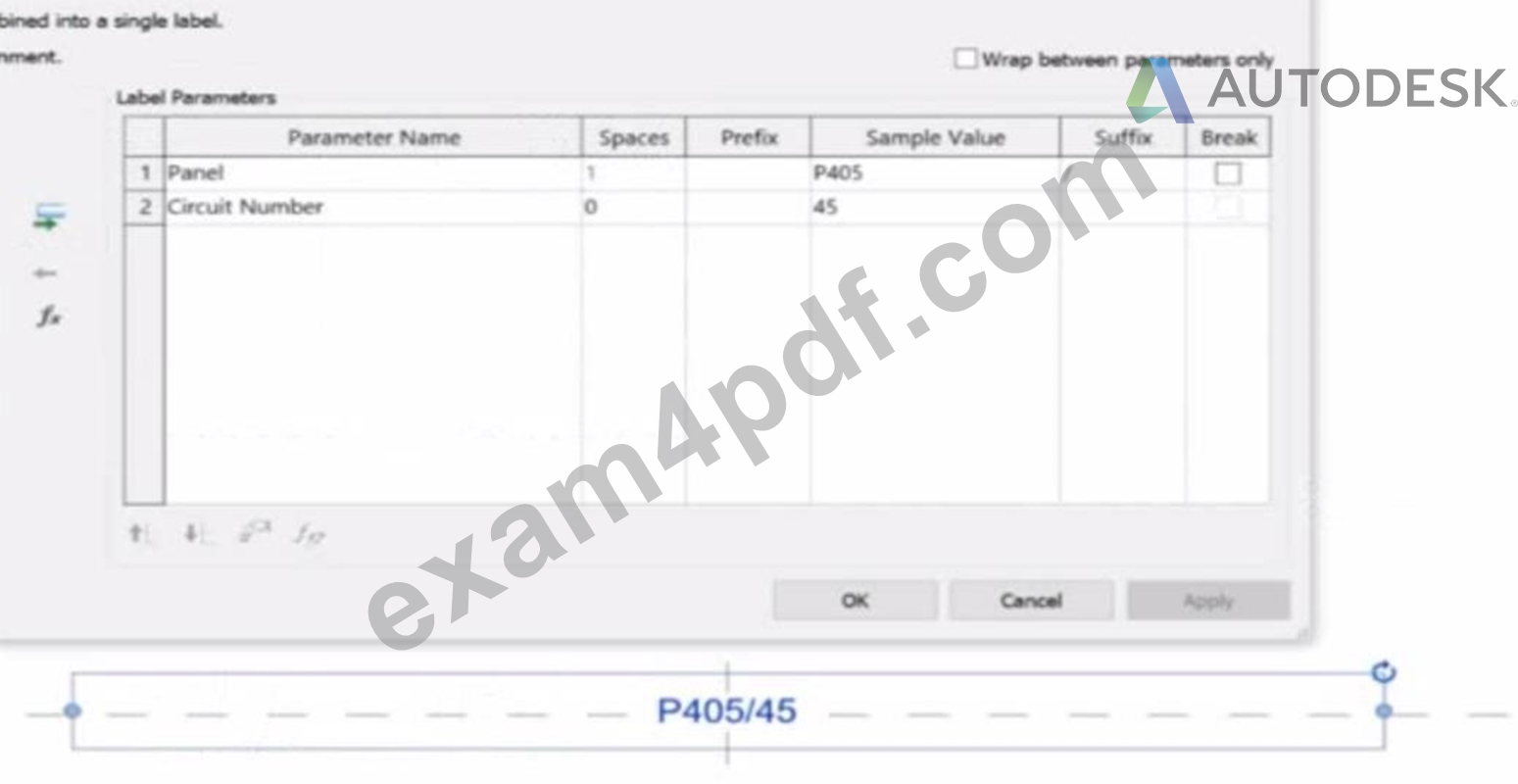
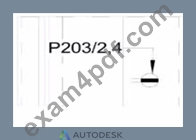
An electrical designer is working on an Electrical Device Panel-Circuit tag. The designer tags a receptacle using the tag properties shown in the exhibit The receptacle is assigned to panel P203 and circuit 2.4.
Which option shows the correct tag?
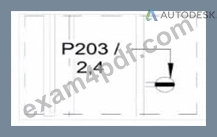
- A.
- B.
- C.
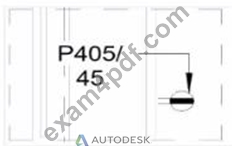
- D.
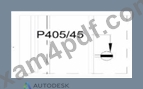
Answer: D
Explanation:
In the exhibit, the Label Parameters for the electrical device tag are configured as follows:
This setup determines how the tag will display in Revit when applied to any device. Specifically:
The Panel parameter (P203 in this case) will be shown first.
A "/" separator follows because it's assigned as the suffix for the Panel parameter.
The Circuit Number (2,4) is displayed immediately after the slash, with no extra spaces or line breaks.
Since the Break column is unchecked, the values will appear on one continuous line, not split across lines.
Revit documentation for tag creation confirms this behavior:
"When defining label parameters in a tag family, the Prefix and Suffix fields control text that appears before or after the parameter value, while the Break checkbox controls whether the text wraps to a new line." Therefore, when the tag is applied to a receptacle on panel P203 and circuit 2,4, the final formatted text will be:
P203/2,4
This corresponds exactly to option B, where the panel and circuit appear on the same line separated by a slash, with no spaces or line breaks.
NEW QUESTION # 21
How can an arrowhead be added to a lag leader line?
- A. Select the tag and enable Leader Line in the Properties palette
- B. Change the Leader Type to Free End.
- C. Choose an arrow type for the Leader Arrowhead in the Type Properties.
- D. Enable Leader Arrowhead in the instance properties.
Answer: C
Explanation:
In Autodesk Revit for Electrical Design, arrowheads on leader lines-such as those used with tags, text notes, or annotations-are controlled through Type Properties, not through instance properties or free-end options.
According to the Revit MEP User's Guide - Annotating Chapter (Chapter 47 and 42), the section "Modifying Tags" explains:
"Select the tag, and on the Properties palette, click (Edit Type). In the Type Properties dialog, select a value for Leader Arrowhead to add an arrowhead to the leader line." This confirms that the arrowhead is defined at the type level, meaning any change applies to all tags or text notes of that annotation type throughout the project. The Leader Arrowhead property allows the designer to choose from predefined arrowhead styles (like "Filled Arrow," "Dot," "Tick Mark," etc.), which are defined globally under:
Manage tab → Settings panel → Additional Settings → Arrowheads.
Furthermore, the document specifies under "Leader Arrowhead Properties":
"Sets the arrowhead shape on the leader line. The value is the name of the arrowhead style defined by the Arrowheads tool." This behavior applies to all annotation categories, including text notes, keynotes, material tags, and electrical device tags, maintaining consistency across all view types in an electrical project.
Therefore, Option C is the correct answer because arrowheads are configured via Type Properties, while the other options are inaccurate:
Option A (Free End) only defines leader attachment behavior.
Option B (Instance properties) does not include a "Leader Arrowhead" toggle.
Option D (Enable Leader Line) only adds or removes a leader line, not the arrowhead style.
References:
Autodesk Revit MEP User's Guide - Chapter 47 "Annotating," pp. 1040-1055 Autodesk Revit MEP User's Guide - Chapter 42 "Text Notes and Tags," pp. 936-949 Autodesk Revit Electrical Design Essentials - "Leader Arrowhead Properties and Annotation Standards"
NEW QUESTION # 22
Refer to exhibits.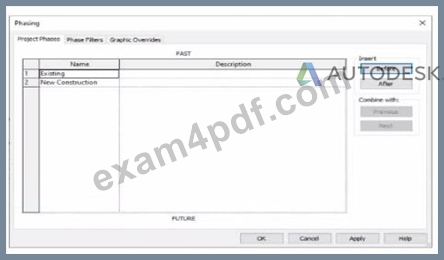
An electrical designer models an existing receptacle on an existing wall that the architect has indicated to be demolished.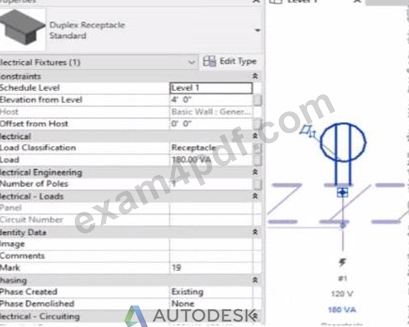
The view is intended to show demolition, and the view's Phase is set to New Construction. How should the designer indicate that the receptacle must also be demolished?
- A. Set the receptacle parameter Phase Demolished to Demolition.
- B. Set the receptacle's type parameter Match Phasing to Host.
- C. Set the receptacle parameter Phase Demolished to New Construction.
- D. Add a Demolition phase, then set the receptacle parameter Phase Demolished to Demolition.
Answer: C
Explanation:
In Autodesk Revit, phasing allows designers to track existing, demolished, and new elements across different project stages. Every model element includes two key phasing parameters:
Phase Created - defines when the element was built or introduced.
Phase Demolished - defines when the element is removed or demolished.
In the provided exhibits:
The project contains two phases: Existing and New Construction.
The receptacle's Phase Created parameter is set to Existing, indicating it belongs to the pre-existing building condition.
The architectural wall hosting the receptacle is to be demolished during New Construction.
When a view's Phase is set to New Construction and its Phase Filter is configured to show demolition, only elements whose Phase Demolished equals New Construction will appear as to be demolished. Therefore, the electrical designer must set the receptacle's Phase Demolished value to New Construction so that it graphically displays as a demolished element in the demolition plan.
As explained in the Autodesk Revit MEP User's Guide - Phasing and Coordination:
"Elements created in one phase and demolished in a subsequent phase must have their 'Phase Demolished' parameter set to that later phase to display properly in demolition views." Thus, to correctly coordinate with the demolition of its host wall, the receptacle must be flagged for demolition during New Construction.
NEW QUESTION # 23
Which condition applies when placing a colling-hosted light fixture?
- A. The light must be placed in the same model as the ceiling
- B. The light must be hosted to the celling reference plane.
- C. The light must be defined in the ceiling layout pattern.
- D. The light must be snapped to the celling using nodes.
Answer: A
Explanation:
According to Autodesk's Revit MEP User's Guide (Revit MEP 2011, Chapter 17 "Electrical Systems"), lighting fixtures in Revit are hosted components-this means they rely on another model element (like a wall, ceiling, or floor) to exist. Specifically, ceiling-hosted lighting fixtures must be placed on a ceiling element that is within the same model file in which the light is being placed.
From the document:
"Most lighting fixtures are hosted components that must be placed on a host component (a ceiling or wall). To place a lighting fixture in a view:
In the Project Browser, expand Views (all) ➤ Floor Plans, and double-click the view where you want to place the lighting fixture.
Click Home tab ➤ Electrical panel ➤ Lighting Fixture.
In the Type Selector, select a fixture type.
On the ribbon, verify that Tag on Placement is selected to automatically tag the fixture.
Move the cursor over the drawing area.
The lighting fixture is previewed as you move the cursor over a valid host or location in the drawing area.
Click to place the lighting fixture."
- Revit MEP User's Guide, Chapter 17: Electrical Systems, p. 402
Additionally, in the Rendering section of the same guide, Autodesk clearly defines hosting relationships in lighting fixture templates:
"The names of all lighting fixture templates include the words Lighting Fixture. Be sure to select the appropriate template for the type of lighting fixture that you want to create. For example, to create a ceiling-based fixture for metric projects, use Metric Lighting Fixture ceiling based.rft.
Revit MEP opens the Family Editor. The template defines reference planes and a light source. For ceiling-based and wall-based fixtures, the template includes a ceiling or wall to host the fixture."
- Revit MEP User's Guide, Chapter 50: Rendering, p. 1148
This indicates that the ceiling host must physically exist within the same model environment. If the ceiling is part of a linked architectural model, the lighting fixture cannot attach to it directly because Revit does not allow cross-model hosting. In such cases, a work plane-based or face-based light family must be used instead.
Therefore, among the given options:
A (snapping using nodes) and B (hosted to a ceiling reference plane) are partial actions within a placement workflow, not hosting conditions.
C (defined in the ceiling layout pattern) is incorrect because pattern layout does not determine hosting.
D (placed in the same model as the ceiling) is correct since Revit requires the ceiling host and the light fixture to exist in the same project file for the hosting relationship to function.
Verified Reference Extracts from Revit for Electrical Design Documentation:
Autodesk Revit MEP User's Guide (2011), Chapter 17: Electrical Systems, p. 402 - "Most lighting fixtures are hosted components that must be placed on a host component (a ceiling or wall)." Autodesk Revit MEP User's Guide (2011), Chapter 50: Rendering, p. 1148 - "For ceiling-based and wall-based fixtures, the template includes a ceiling or wall to host the fixture." Revit MEP Family Templates Description - Metric Lighting Fixture ceiling based.rft defines the ceiling as the hosting reference within the same model environment.
NEW QUESTION # 24
Refer to exhibit.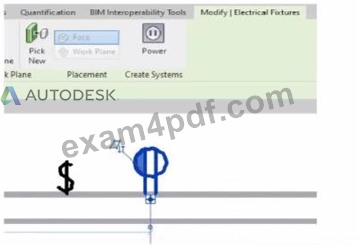
An electrical designer is circuiting a dwelling unit. The receptacle (electrical fixture) shown must be controlled by the switch (lighting device) shown to switch a plug-in lamp When the receptacle is selected, Revit does not provide an option to add the receptacle to a switch system.
What is causing this issue?
- A. A switch system has not yet been created.
- B. Only lighting fixtures can be added to switch systems.
- C. The switch and the receptacle are not on the same circuit
- D. The receptacle's "Switchable" option Is not selected within the family editor.
Answer: D
Explanation:
In Autodesk Revit Electrical Design, when an electrical designer attempts to control a receptacle (an Electrical Fixture family) with a switch (a Lighting Device family) as part of a switch system, Revit will only allow this connection if the receptacle's family has been configured as Switchable within the Family Editor.
According to the Autodesk Revit MEP User's Guide (Chapter 17 - "Electrical Systems"):
"Revit allows you to add elements such as lighting fixtures or receptacles to a switch system only if the family includes a switchable connector. The 'Switchable' parameter must be enabled in the Family Editor to allow this connection." This means that for the receptacle shown in the exhibit to appear as an available component for switching, the Electrical Connector within its family must have the Switchable property checked. This parameter is found under:
Family Editor → Select Connector → Properties Palette → Electrical - Data → Switchable.
If this option is not enabled, Revit treats the receptacle as a standard unswitched outlet and will not display it in the switch system creation dialog. Once the option is checked, the designer can reload the family into the project and associate it with a switch system normally.
Additionally, the Smithsonian Facilities Revit Template User's Guide explains this concept as follows:
"To associate receptacles with lighting switches, ensure that the receptacle family has a switchable connector. Without this setting, the device will not appear as an assignable component to a switch system." This distinction is important in residential electrical modeling, where switched receptacles are common for plug-in lamps. Lighting circuits can include both Lighting Fixtures and Switchable Receptacles when the family configuration supports it.
Incorrect Options Explanation:
A . A switch system not being created is irrelevant - the issue occurs before system creation.
C . Being on the same circuit doesn't affect switchability; it affects electrical load connection.
D . Incorrect - Revit supports switchable receptacles if properly configured.
Therefore, the correct answer is B. The receptacle's "Switchable" option is not selected within the family editor.
References:
Autodesk Revit MEP User's Guide - Chapter 17 "Electrical Systems," pp. 417-421 Autodesk Revit Electrical Design Essentials - Section "Creating and Editing Electrical Fixtures and Switch Systems" Smithsonian Facilities Revit Template User's Guide - Section 8.4 "Switchable Receptacle Family Standards," p. 89
NEW QUESTION # 25
Refer to exhibit.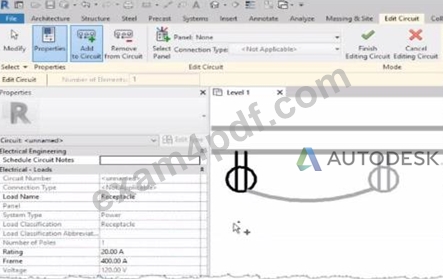
Why is one receptacle shown in full color (black) and one receptacle shown in halftone (gray)?
- A. The wire connecting the two receptacles is not property attached
- B. The two receptacles have different load classifications.
- C. The two receptacles are not on the some circuit.
- D. The circuit's panelboard is not assigned.
Answer: C
Explanation:
In Autodesk Revit MEP, when working with electrical circuits, Revit visually differentiates elements based on their circuit membership and active selection during the circuit editing process. In the Edit Circuit mode, the software highlights elements connected to the active circuit in full color (black), while other electrical devices not part of that same circuit appear in halftone (gray).
In the exhibit, one receptacle appears in black, while the other is shown in gray (halftone). This indicates that only one of the receptacles is currently included in the circuit being edited, while the other receptacle belongs to a different circuit or has not yet been assigned to any circuit.
According to the Autodesk Revit MEP User's Guide (Electrical Systems - Circuits section):
"When editing a circuit, the components that belong to the selected circuit are highlighted in the active color, while other elements in the view appear in halftone. Devices that are not on the same circuit will not be shown as connected or editable until added to the current circuit." Therefore:
The black receptacle is the one actively included in the selected circuit.
The gray (halftone) receptacle is not on the same circuit and thus not active for editing.
This visual cue is Revit's way of helping the designer distinguish between circuit connections when adding or managing electrical devices.
NEW QUESTION # 26
Exhibit.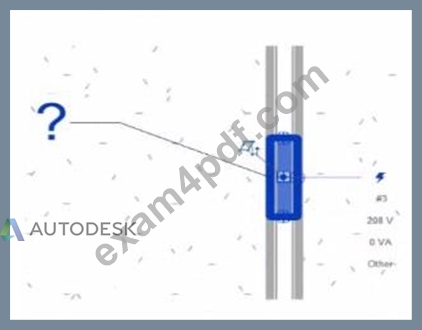
An electrical designer creates a panel schedule. Which Electrical Equipment parameter defines the default name of the panel schedule view?
- A. Description
- B. Panel Name
- C. Type Mark
- D. Mark
Answer: B
Explanation:
In Autodesk Revit for Electrical Design, when a designer creates a panel schedule, the default name of the panel schedule view is automatically derived from the Panel Name parameter of the Electrical Equipment family to which the circuits are assigned.
According to the Revit MEP User's Guide (Electrical Systems section: Panel Schedules):
"When you create a panel schedule, Revit uses the Panel Name parameter of the electrical equipment to define the default schedule name. The Panel Name identifies the distribution panel that supplies the circuits. This name appears in both the Panel Schedule view and in circuit information tags."
- Revit MEP User's Guide, Chapter 17: Electrical Systems - Panel Schedules The Panel Name is a critical electrical equipment instance parameter located in the Electrical - Circuiting group of properties.
It appears in both the Electrical Equipment Properties Palette and the Panel Schedule Header. This name can later be modified manually, but by default, it directly controls the naming convention of the generated schedule.
In contrast:
A . Type Mark - identifies types within the family for documentation and does not control schedule naming.
B . Mark - a unique instance identifier often used for tags, but not for panel schedule view naming.
C . Description - provides descriptive text only for documentation or labeling.
D . Panel Name - correctly defines and drives the default schedule view name for panels and circuits.
When a panel (electrical equipment) is placed in the model and circuits are connected, Revit generates a new Panel Schedule View automatically titled using the value entered in the Panel Name field (e.g., "Panel LP-1"). This ensures consistency between the modeled equipment and the schedule documentation.
Verified Reference Extracts from Revit for Electrical Design Documentation:
Autodesk Revit MEP User's Guide (2011), Chapter 17: Electrical Systems - Creating and Editing Panel Schedules:
"The name of the panel schedule view is determined by the Panel Name property of the electrical equipment." Revit MEP Electrical Design Training Manual, Module: Electrical Equipment and Panel Schedules:
"Panel Name is used by Revit as the default identifier for any panel schedule view created for that equipment."
NEW QUESTION # 27
An electrical designer needs to add a drafting view to a model from another project. What is the method to do this?
- A. Select Open, select the desired project, right-click the desired drafting view, and then copy/paste
- B. Select Insert from File, select Insert Views from File, browse to the desired project, and then select the drafting view.
- C. Select Link Revit, browse to the desired model, and then select desired drafting view
- D. Select Transfer Project Standards, select the desired project, and then select the drafting view.
Answer: B
Explanation:
In Autodesk Revit, a drafting view is a 2D view that contains detail information not directly associated with the model. When an electrical designer needs to reuse a drafting view from another project (for example, standard details or symbols), the correct method is to use the Insert Views from File command under the Insert tab.
The Autodesk Revit MEP User's Guide - Chapter 48 "Detailing" (page 1072) describes the process as follows:
"Inserting a Drafting View from Another Project
Click Insert tab ➤ Import panel ➤ Insert from File drop-down ➤ Insert Views from File.
In the Open dialog, select a project file, and click Open.
The Insert Views dialog opens, displaying all the views that are saved in that project.
Select the desired drafting views and click OK."
(Revit MEP User's Guide, p. 1072)
This command imports the drafting view into the current Revit model while preserving annotations, filled regions, detail components, and text. It ensures that any standard electrical symbols, notes, or schematics created previously can be directly reused without rebuilding the detail from scratch.
If any duplicate type names exist, Revit automatically uses the types and properties from the current project, displaying a warning if necessary.
"Revit MEP creates a new drafting view with all the 2D components and text. If you have duplicate type names, the type name and properties from the current project are used." (Revit MEP User's Guide, p. 1072) Supporting Documentation Extracts:
"Saving Drafting Views to an External Project
Select a drafting view in the Project Browser.
Right-click the view name, and click Save to New File."
(Revit MEP User's Guide, p. 1071)
"The saved project can then be used later to insert drafting views into another Revit project using Insert Views from File." (Revit MEP User's Guide, p. 1072)
NEW QUESTION # 28
Refer to exhibit.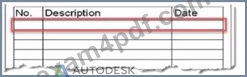
An electrical designer is issuing several sheets and wants 'Issued for Bid" to appear in the revision schedule of the title block. Drag and drop into the correct order to indicate how this can be accomplished to only the sheets that are being issued.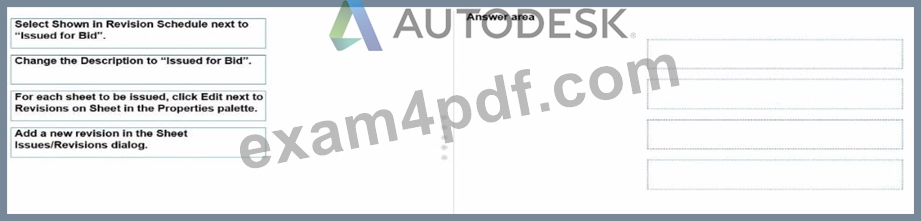
Answer:
Explanation: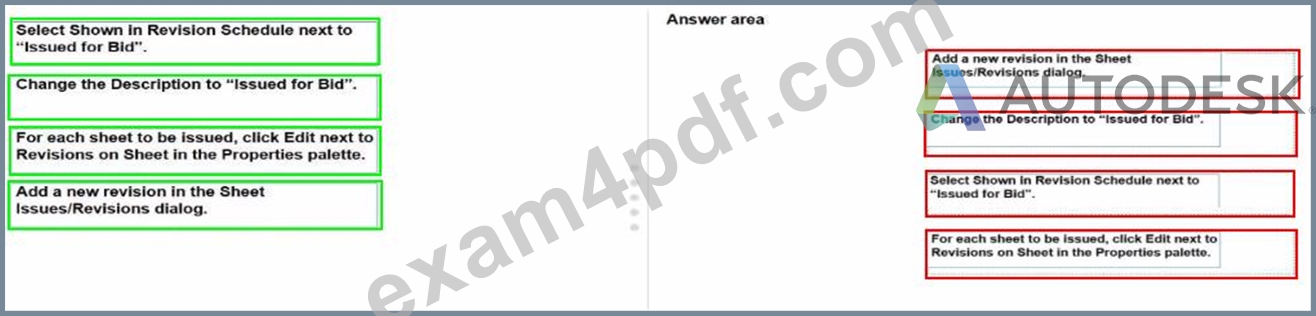
NEW QUESTION # 29
An electrical designer wants to add a parameter to a lighting fixture schedule without editing the families. Which parameter type should the designer use?
- A. Schedule parameter
- B. Global parameter
- C. Project parameter
- D. Family parameter
Answer: C
Explanation:
In Revit Electrical Design workflows, when a designer wishes to add a parameter to a lighting fixture schedule without editing the families themselves, the proper approach is to use a Project Parameter.
The Revit MEP documentation clearly explains:
"To add a custom field to a schedule, you can create a custom parameter using the Parameter Properties dialog. Under Parameter Type, select Project parameter." This method links the parameter directly to the project and to all instances of the specified category (in this case, Lighting Fixtures), allowing it to appear in the schedule automatically without requiring any modification to the family files (.RFA).
In contrast:
Family Parameters apply only within the family file and are not schedulable across multiple families.
Global Parameters control dimensional or relational constraints, not schedule data.
Reporting Parameters are read-only and extract model information; they cannot be manually added to schedules.
Revit's scheduling workflow defines this process:
"On the Fields tab of the Sheet List Properties dialog, click Add Parameter... Under Parameter Type, select Project parameter." This same mechanism applies to lighting fixture schedules, as schedules and sheet lists share parameter structures in Revit. The new project parameter can then be sorted, filtered, and displayed in the schedule view for documentation or tagging purposes.
References:
Autodesk Revit MEP User's Guide - Chapter 49 "Preparing Construction Documents," pp. 1126-1128 Autodesk Revit Parameters Overview - "Project Parameters" and "Shared Parameters," pp. 1541-1543 Autodesk Revit Electrical Design Essentials - Schedule and Parameter Management Section
NEW QUESTION # 30
Refer to exhibit.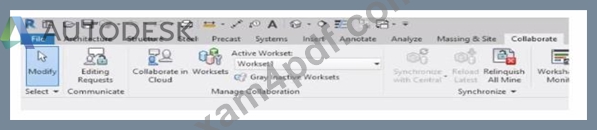
Why is Synchronize with Central disabled?
After enabling collaboration for a project, an electrical designer observes the ribbon.
- A. The designer is working in the central model.
- B. The central model is unavailable or not found.
- C. The designer has unresolved editing requests.
- D. The designer has unrelinquished elements.
Answer: A
Explanation:
In Autodesk Revit, the Collaborate tab provides the tools necessary for managing multi-user worksharing environments. The Synchronize with Central command allows users to save their local changes back to the central model. However, this command becomes disabled under certain conditions - most notably when the user is currently working directly within the central file rather than a local copy.
The Autodesk Revit User's Guide - Worksharing and Collaboration section clearly explains this behavior:
"When you open the central file directly, the Synchronize with Central option is unavailable because all edits are already in the central file. Worksharing operations such as borrowing, relinquishing, or synchronization only apply to local copies created from the central model." This rule ensures that the integrity of the central model is preserved and that no user directly edits or synchronizes within it, preventing potential file corruption. In normal collaborative workflows, users open local copies of the central model. The local files maintain an editable subset of elements while allowing synchronization and relinquishing operations.
Thus, the disabled Synchronize with Central button (as shown in the exhibit) indicates that the designer is currently in the central model, not a local copy. Since synchronization is unnecessary in this state - all changes are automatically applied to the central file - the command is grayed out.
NEW QUESTION # 31
An electrical designer needs to check for Interferences between conduit in the host model and beams in a linked structure model in the Interference Check dialog, select the items that the designer must select to perform the interference check. (Select two.)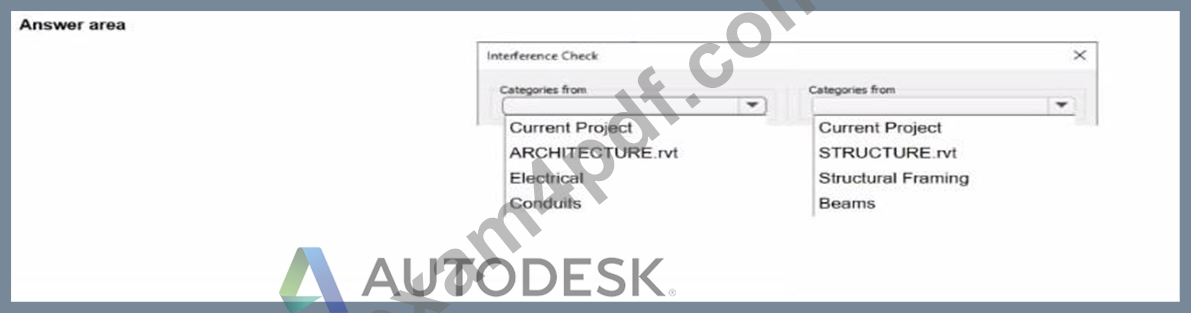
Answer:
Explanation: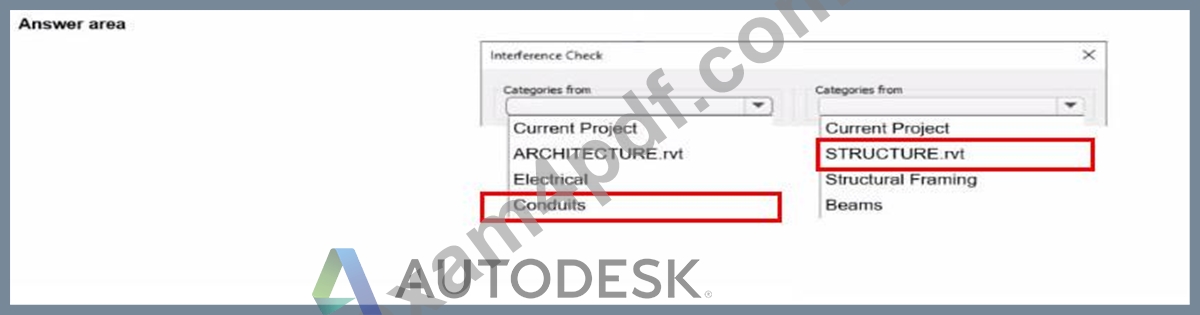
NEW QUESTION # 32
An electrical designer is creating an electrical fixture family for a receptacle. The designer nests a generic annotation family that contains the receptacle symbol and a label What must be done in the electrical fixture family so that the label value can be changed in a project?
- A. In the Visibility Settings for the nested generic annotation, select Label.
- B. Create a label and use a formula to set it equal to the generic annotation label.
- C. Associate the nested family's parameter to a parameter in the electrical fixture family.
- D. Enable Shared in the generic annotation family and re-load it into the fixture family.
Answer: C
Explanation:
In Revit, when a designer nests a Generic Annotation family (such as a receptacle symbol) inside an Electrical Fixture family, and that annotation includes a label, the label value cannot be changed directly in the project unless the parameter controlling that label is properly associated (linked) to a parameter in the host (electrical fixture) family.
According to Autodesk Revit Electrical Design documentation, under "Creating Family Parameter Links", it is explicitly stated:
"By linking family parameters, you can control the parameters of families nested inside host families from within a project view. You can control instance parameters or type parameters." The procedure describes the correct process to make the label value editable in a project:
"Click the button next to a parameter that is of the same type as the one you created in Step 6. For example, if you created a text parameter, you must select a text parameter here. In the dialog that displays, select the parameter you created in Step 6 to associate it with the current parameter, and click OK."
"The nested family changes according to the value you entered."
This means that the designer must associate the nested family's label parameter (usually a text parameter controlling the annotation label) to a corresponding parameter in the host electrical fixture family. Once linked, this host parameter appears in the project's Properties palette, allowing the designer to change the label value directly.
Other options-such as creating formulas, modifying visibility, or enabling "Shared"-do not make the label editable in the project unless the parameter link is established.
NEW QUESTION # 33
An electrical designer receives an architectural model and links it into the electrical model.
The designer wants to use the Copy/Monitor tool to copy the exact electrical fixtures created by the architect.
The designer also wants the software to automatically detect new electrical fixtures added to the architectural model.
Select the correct coordination settings from the drop-down lists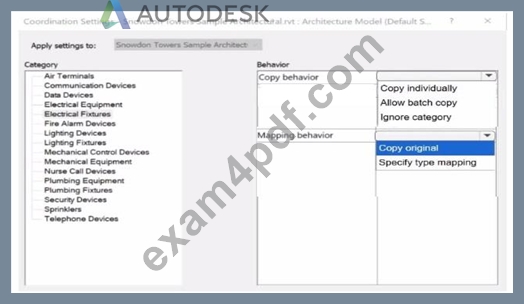
Answer:
Explanation: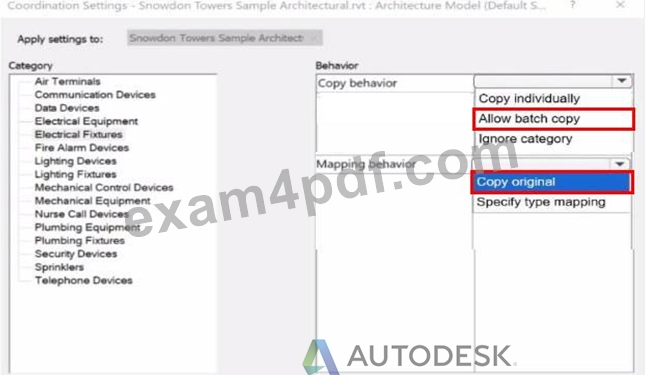
NEW QUESTION # 34
Refer to exhibit.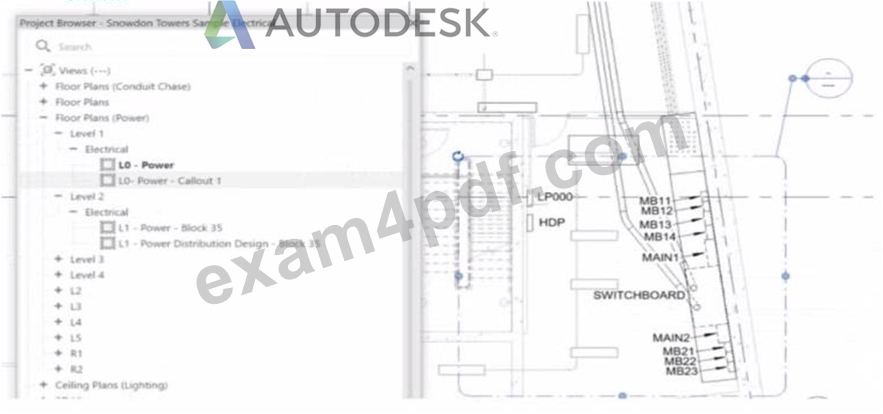
- A. Select the callout and choose a detail view under Reference Other View.
- B. Open the callout view from the Project Browser and change its type.
- C. Delete the existing callout and create a new one with the correct type.
- D. Select the callout and change its type from the Type Selector.
Answer: A
Explanation:
In Autodesk Revit, when an electrical designer creates a callout view, the software automatically generates a new dependent or independent view based on the selected callout type. However, if a callout is accidentally linked to the wrong or redundant view, the designer can easily reassign it to another existing view without recreating the callout. This can be done using the Reference Other View property in the Properties palette.
According to the Revit MEP User's Guide (Chapter 47 "Views and Callouts"):
"To link a callout to an existing view rather than creating a new one, select the callout, and under the properties for that element, use Reference Other View to specify the desired target view." This means that when the designer selects the callout (in this case, shown as "L0 - Power - Callout 1" in the Project Browser), they can modify the Reference Other View setting from the Properties palette to point to a different, pre-existing detail view or callout view-for example, one showing an enlarged power distribution layout or switchboard detail.
This is the most efficient workflow because:
It avoids recreating or redrawing the callout (unlike Option C).
It preserves all annotation and sheet referencing data.
It ensures alignment and consistency across sheet references.
The Smithsonian Facilities Revit Template User's Guide reinforces this standard Revit practice:
"When a view reference or callout is incorrectly associated, use the Reference Other View property to redirect the annotation to an existing detail or dependent view." Why the Other Options Are Incorrect:
B . Change its type from the Type Selector: Callout types control annotation style (not the referenced view).
C . Delete and recreate: This is unnecessary and inefficient.
D . Open the callout view and change its type: Callout type cannot be changed directly once created; it's controlled by view properties.
Therefore, the correct and Revit-recommended approach is Option A: Select the callout and choose a detail view under Reference Other View.
References:
Autodesk Revit MEP User's Guide - Chapter 47 "Views and Callouts," pp. 1092-1097 Smithsonian Facilities Revit Template User's Guide - Section 2.8.1 "View Types and Templates," pp. 29-31 Autodesk Revit Electrical Design Essentials - "Callouts, Detail Views, and Referencing Workflows"
NEW QUESTION # 35
Refer to exhibit.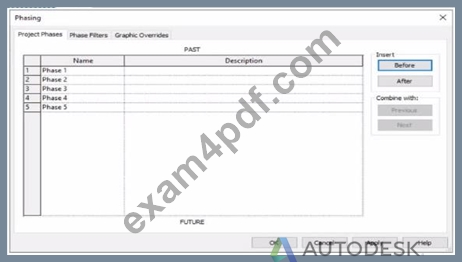
An electrical designer is working m a view set for Phase 3.
Which elements within this view will be overridden according to the "Temporary" graphic override settings?
- A. Elements that were created and demolished in Phase 3
- B. Elements that will be demolished in Phase 4
- C. Elements that were created in Phase 1 and demolished in Phase 3
- D. Elements that were created and demolished in Phase 2
Answer: A
Explanation:
In Autodesk Revit, phasing is used to represent different stages of a project - for example, existing conditions, demolition, and new construction - all within a single model. Each view is assigned to a specific phase, and elements in that view are displayed according to their phase status (created, existing, demolished, or temporary).
According to the Autodesk Revit User's Guide (Phasing and Phase Filters section):
"Each element in a project has 2 key phase-related parameters:
Phase Created - the phase in which the element was created.
Phase Demolished - the phase in which the element is demolished.
These parameters control how elements display in different views depending on the view's assigned phase and phase filter."
- Revit User's Guide, Chapter: Phasing and Phase Filters
Revit automatically applies Graphic Overrides to display phase statuses. These are defined under Manage tab → Phases → Graphic Overrides. The categories include:
Existing
Demolished
New
Temporary
"Elements that are both created and demolished in the same phase are considered Temporary and display using the Temporary graphic override settings."
- Revit MEP User's Guide, Managing Phases and Graphic Overrides
Applying This to the Exhibit:
In the exhibit, the project includes multiple phases (Phase 1 through Phase 5). The designer is currently working in Phase 3.
Elements created and demolished in the same phase (Phase 3) are displayed as Temporary.
Elements created in earlier phases (e.g., Phase 1) and demolished in the current phase (Phase 3) are displayed as Demolished.
Elements created in later phases (e.g., Phase 4) do not yet exist and are not shown.
Therefore:
A . Elements that will be demolished in Phase 4 → not applicable; those elements are still active in Phase 3.
B . Elements created in Phase 1 and demolished in Phase 3 → will appear as Demolished, not Temporary.
C . Elements created and demolished in Phase 3 → correctly displayed using Temporary graphic overrides.
D . Elements created and demolished in Phase 2 → would not appear in Phase 3 (they were already removed).
Verified References from Revit Electrical Design Documentation:
Autodesk Revit MEP User's Guide (2011), "Working with Phases":
"Elements created and demolished in the same phase are shown using the Temporary phase graphic override settings." Autodesk Revit Architecture and MEP Official Study Guide, "Phasing and Phase Filters":
"Temporary elements exist only during the phase in which they are created and demolished; they are displayed using the temporary override graphics."
NEW QUESTION # 36
Which Revit command is used to map a Keynote Table file?
- A. Keynote Manager
- B. Element Keynote
- C. Keynoting Settings
- D. Keynote Legend
Answer: C
Explanation:
The correct command in Revit used to map (assign or browse to) a Keynote Table file is Keynoting Settings.
In Revit, keynotes are driven by an external keynote table, typically a tab-delimited TXT file that must be assigned (mapped) in the project so keynote tags can read values correctly. The official Autodesk Revit MEP documentation clearly identifies that the Keynoting Settings dialog is where this mapping is performed.
From the documentation:
To access the Keynoting Settings dialog, the instructions state:
"click Annotate tab ➤ Tag panel drop-down ➤ (Keynoting Settings)."
Regarding keynote table file location mapping:
"Keynote Table - Full Path displays the entire path of the keynote file... Saved Path displays the file name of the keynote file that is loaded." It goes further to explain file path types:
"Absolute identifies a specific folder... Relative finds the keynote file where the project file... is located... At Library Locations finds the keynote file where the stand-alone installation or network deployment specified." The command is explicitly referenced again when fixing a missing mapping:
"Unable to Load Keynote data. Check keynote table locations in Keynoting Settings."
"To specify the location of the keynote text file... click (Keynoting Settings)." Other listed options do not perform keynote file mapping:
Keynote Manager does not exist as a command in native Revit.
Element Keynote is a tagging method.
Keynote Legend only displays already-mapped keynote information.
NEW QUESTION # 37
How can an electrical designer see changes from other users without saving their own work to the central model?
- A. Reload Latest
- B. Worksharing Display
- C. Manage Worksets
- D. Relinquish All Mine
Answer: A
Explanation:
In Autodesk Revit, particularly for electrical and MEP design disciplines using a workshared model, the command "Reload Latest" allows a designer to see changes made by other users without saving or publishing their own work to the central model. This tool ensures that while the designer continues to work locally, their environment stays updated with the latest modifications made by colleagues.
According to the Autodesk Revit MEP User Guide (Chapter 54 - Working in a Team), under the section Loading Updates from the Central Model, it states:
"As you work, you can see the changes other team members have made to the project after they have been synchronized with the central model. You can load updates from the central model without publishing your changes to the central model.
In your local file, click Collaborate tab ➤ Synchronize panel ➤ (Reload Latest)." This confirms that the Reload Latest command refreshes your local file with any modifications from the central file that others have synchronized, but it does not send your local changes back. It is a critical feature for coordination in a team environment, especially when multiple designers-such as electrical, mechanical, and structural engineers-are contributing simultaneously to a shared BIM model.
By contrast:
A . Relinquish All Mine only releases ownership of elements but doesn't update the local model.
C . Manage Worksets is for controlling visibility and editability of worksets.
D . Worksharing Display visually identifies ownership and status but doesn't refresh model data.
Therefore, when an electrical designer needs to review updates from others (for example, when a lighting layout needs coordination with architectural ceiling adjustments), the proper workflow is to use Reload Latest, ensuring all new information from the central model appears instantly without saving or affecting their current unsaved edits.
References:
Autodesk Revit MEP 2011 User's Guide, Chapter 54: Working in a Team, "Loading Updates from the Central Model," pp. 1332-1333.
Autodesk Revit Structure User's Guide, Chapter 49: Working in a Team, "Loading Updates from the Central Model," p. 1230.
Smithsonian Revit Template Guide (2021), Section 6.3.1 How Worksharing Works, confirming synchronization and reloading behavior for shared Revit environments.
NEW QUESTION # 38
Refer to the exhibit.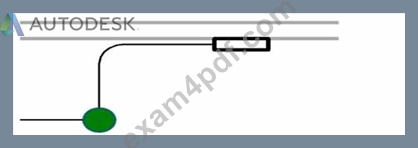
- A. Project Browser > Conduits > Conduits with Fittings > Single Line Symbology
- B. Electrical Settings > Conduit Settings > Rise Drop > Single Line Symbology
- C. Properties > Edit Type > Single Line Symbology
- D. Object Styles > Conduits > Rise/Drop > Single Line Symbology
Answer: C
Explanation:
In Autodesk Revit MEP, conduit systems can be represented in plan views using either detailed or single-line symbology. The Single Line Symbology display setting is used for schematic or simplified representations - often in electrical riser or distribution diagrams.
The setting that controls whether conduits display in single-line or detailed form is found in the Type Properties of the conduit family, not in Object Styles or Electrical Settings. Specifically, it is accessed by selecting a conduit in the model and navigating to:
Properties Palette → Edit Type → Single Line Symbology
From there, users can define how fittings, rise/drop symbols, and conduits themselves are represented in single-line schematic mode. Adjusting this type parameter affects the graphical display for that conduit type throughout all applicable views where single-line graphics are used.
According to the Autodesk Revit MEP User's Guide (Electrical Systems → Conduit Systems section):
"The conduit type properties define the graphical representation in single-line drawings. By editing the Single Line Symbology in the Type Properties dialog, designers control how the conduit and fittings appear in plan views." This parameter is especially important in electrical documentation where simplified representations are required for coordination and electrical diagrams.
NEW QUESTION # 39
An electrical designer has created a family and loaded It Into the project. The designer wants to connect the family to a power circuit but the Power icon is not available when the family Is selected.
How should the designer fix the problem?
- A. Add an electrical connector to the family.
- B. Set the distribution system for the family.
- C. Set the family parameter to Shared.
- D. Change the Voltage parameter value to non-zero.
Answer: A
NEW QUESTION # 40
Refer to exhibit.
A panelboard has the following properties: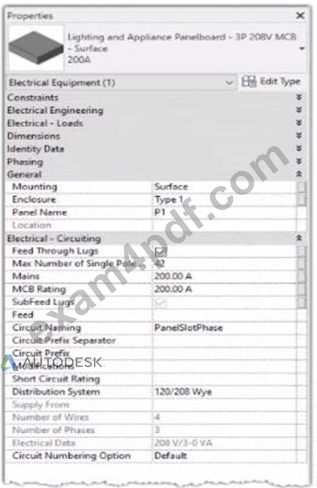
The Circuit Naming Scheme PanelSlolPhase. which defines the value of the Circuit Number parameter, is configured as follows: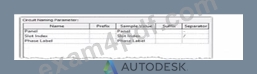
In electrical settings. Phase Labels have not been modified from the default "A." "B." and "C- The Circuit Number lot a single-pole circuit in the panelboard's first breaker position is----------(Enter the correct value into the field)
Answer:
Explanation:
See the explanation
Explanation:
The answer is P1/1/A
In Autodesk Revit Electrical Design, the Circuit Number for a branch circuit in a panelboard is automatically generated based on the Circuit Naming Scheme specified in the project's Electrical Settings. This naming scheme defines how each circuit is labeled by combining predefined fields such as Panel Name, Slot Index, and Phase Label.
From the exhibit, the Circuit Naming Parameter setup is configured as:
Name
Prefix
Sample Value
Suffix
Separator
Panel
Panel
Panel
-
"-"
Slot Index
Slot Index
Slot Index
-
"/"
Phase Label
Phase Label
Phase Label
-
-
The panelboard properties show that its Circuit Naming method is set to PanelSlotPhase, which means that Revit will generate circuit numbers using the following structure:
[Panel Name] - [Slot Index] / [Phase Label]
From the exhibit:
Panel Name: P1
Slot Index (Breaker Position): 1 (since the question refers to the first breaker position) Phase Label: A (default value for the first phase in a three-phase 120/208V Wye system) Therefore, the Circuit Number for a single-pole circuit in the first breaker slot will be:
✅ P1-1/A
This follows Revit's documented logic for circuit naming. According to the Autodesk Revit MEP User's Guide (Chapter 17 "Electrical Systems"):
"The circuit numbering format is controlled by the Electrical Settings > Circuit Naming template. The default scheme combines panel name, circuit number, and phase label, using the separators defined by the user." Furthermore, the Smithsonian Facilities Revit Template User's Guide confirms:
"In the default electrical configuration, circuit numbers use the format [Panel Name]-[Circuit Number]/[Phase], such as 'P1-1/A' for the first single-pole circuit on phase A." Hence, based on the provided configuration and standard electrical setup, the correct circuit number for the first single-pole breaker position in panelboard P1 is P1-1/A.
References:
Autodesk Revit MEP User's Guide - Chapter 17 "Electrical Systems," pp. 420-427 Smithsonian Facilities Revit Template User's Guide - Section 8.6 "Panel Schedules and Circuit Naming Schemes," p. 90 Autodesk Revit Electrical Design Essentials - "Circuit Naming Rules and Panel Configuration Standards"
NEW QUESTION # 41
......
Autodesk RVT_ELEC_01101 Exam Syllabus Topics:
| Topic | Details |
|---|---|
| Topic 1 |
|
| Topic 2 |
|
| Topic 3 |
|
| Topic 4 |
|
| Topic 5 |
|
RVT_ELEC_01101 Premium PDF & Test Engine Files with 65 Questions & Answers: https://practicetorrent.exam4pdf.com/RVT_ELEC_01101-dumps-torrent.html
